Payment methods
Your subscription renews against a single card on file. This page covers adding and updating that card, what the saved-card display tells you, and how renewals use it.
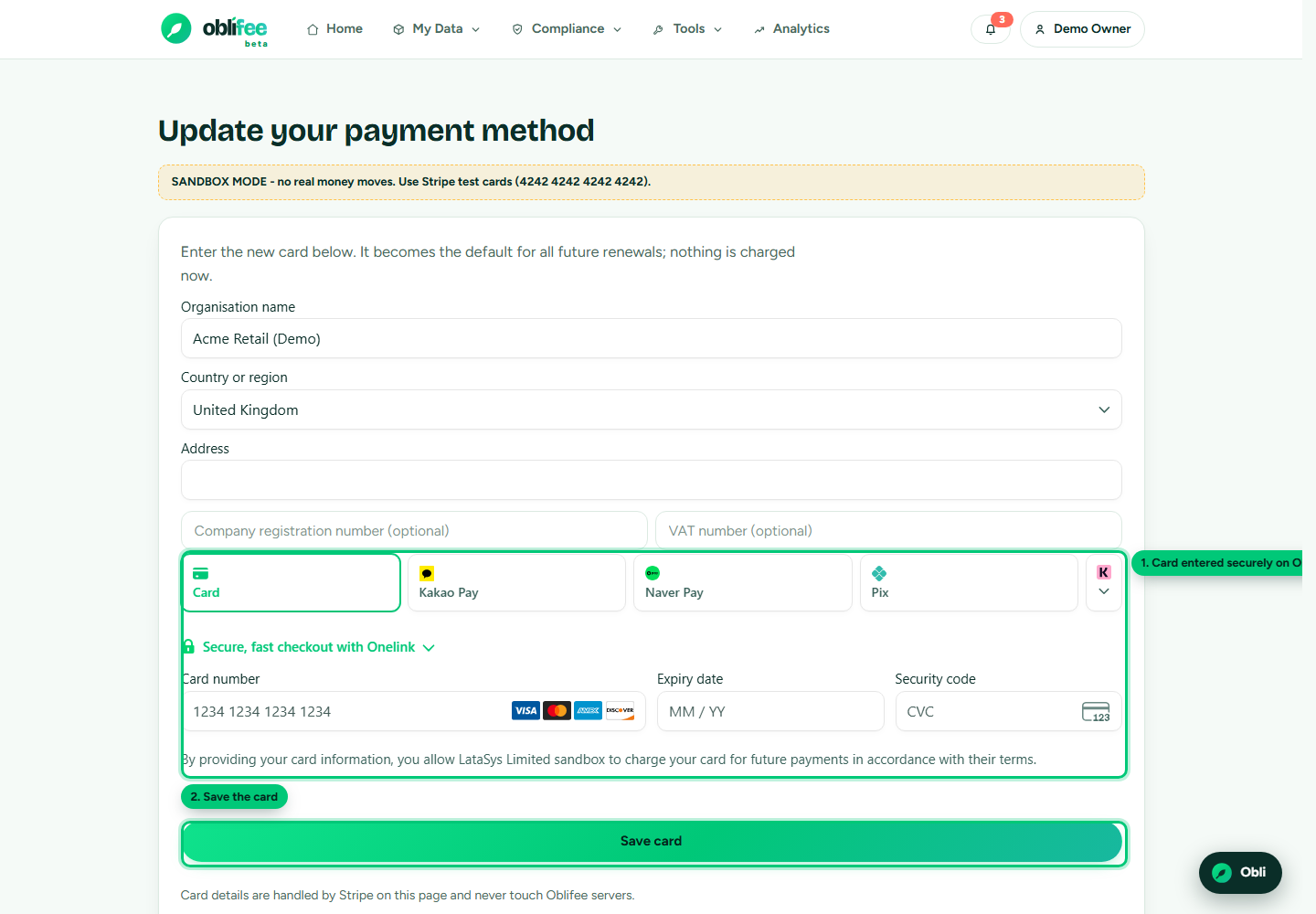
Adding or updating your card
- On the Billing page, choose Add card (or Update card if one is already on file).
- Enter your business name and address, and — if you have them — your company registration number and VAT number (see Company & VAT details).
- Enter your card details in the embedded card form.
- Choose Save card.
The card form is provided by Stripe and runs on Oblifee's own page — you are never redirected to a separate hosted checkout. Oblifee never sees or stores your raw card number; the card is held securely by Stripe, and Oblifee keeps only a reference to it.
:::tip Updating replaces the old card Saving a new card makes it the default for both your customer record and your running subscription, so the next renewal uses it. There is no separate "make default" step. :::
What the saved card shows
Once a card is on file, the Billing page displays a compact summary of it — enough to recognise the card without exposing it.
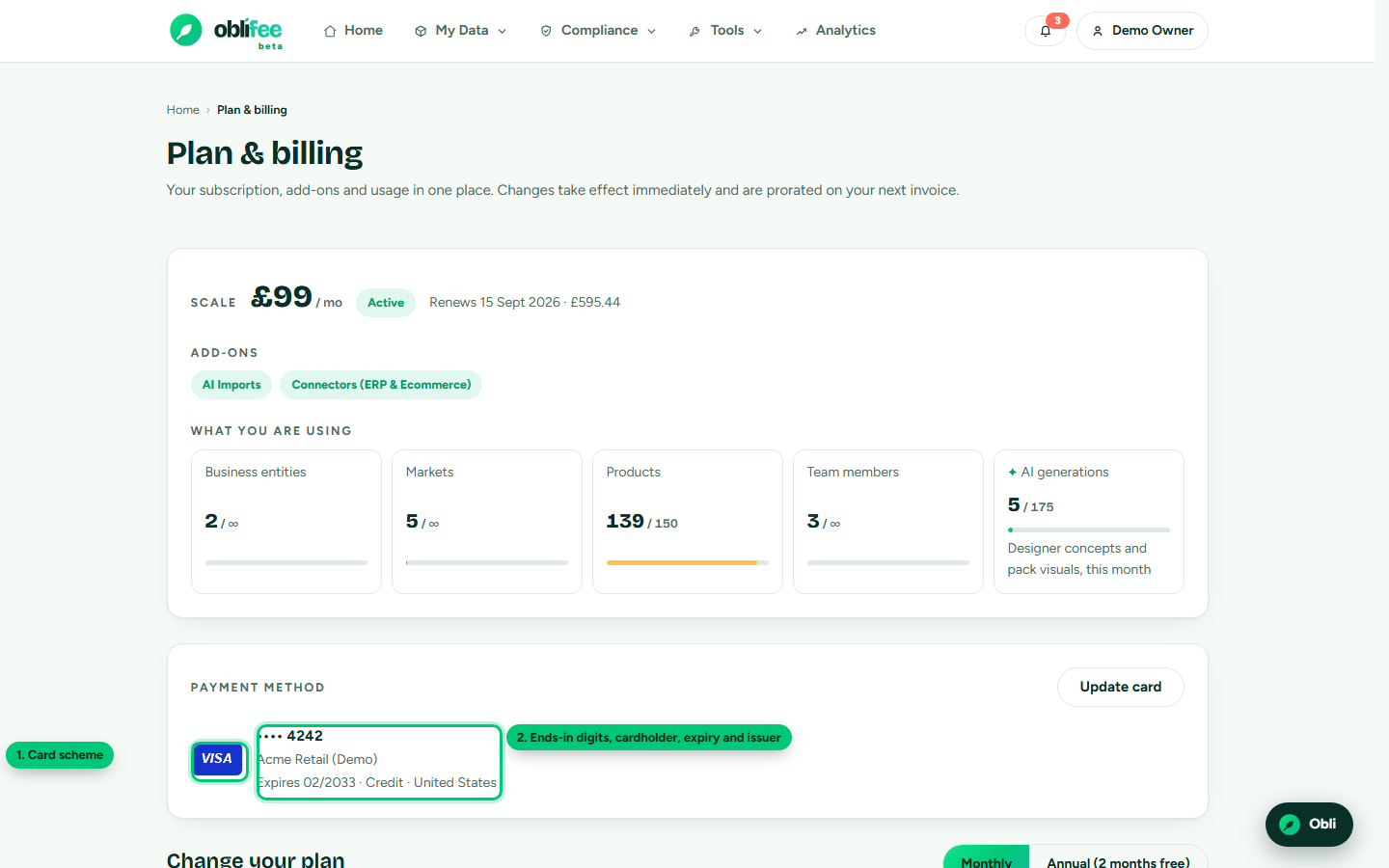
| Shown | Meaning |
|---|---|
| Scheme logo | The card network — Visa, Mastercard, American Express, and others |
| •••• last four | The last four digits, so you can tell which card it is |
| Cardholder name | The name on the card's billing details, when provided |
| Expiry | The card's expiry month and year |
| Funding type | Whether it is a credit, debit or prepaid card |
| Issuing country | The country that issued the card |
How renewals use the card
Each renewal is charged automatically to the saved card — you do not re-enter it. If a renewal fails (for example, an expired card), the workspace owners are notified and prompted to update it; your workspace stays active while you do. Updating the card clears the block on the next attempt.
:::note Keep the card current The most common cause of a failed renewal is an expired or replaced card. If your card details change, update them here before your next renewal date, which you can see on the Billing page. :::
Shopify-billed workspaces
If you installed Oblifee through Shopify, your card is managed by Shopify, not here. Oblifee's card page will send you to your Shopify admin billing settings to add or change your payment method. See Managing your subscription.
Where to go next
- Company & VAT details — the business details captured alongside your card.
- Managing your subscription — plan changes and renewals.