Uploading artwork
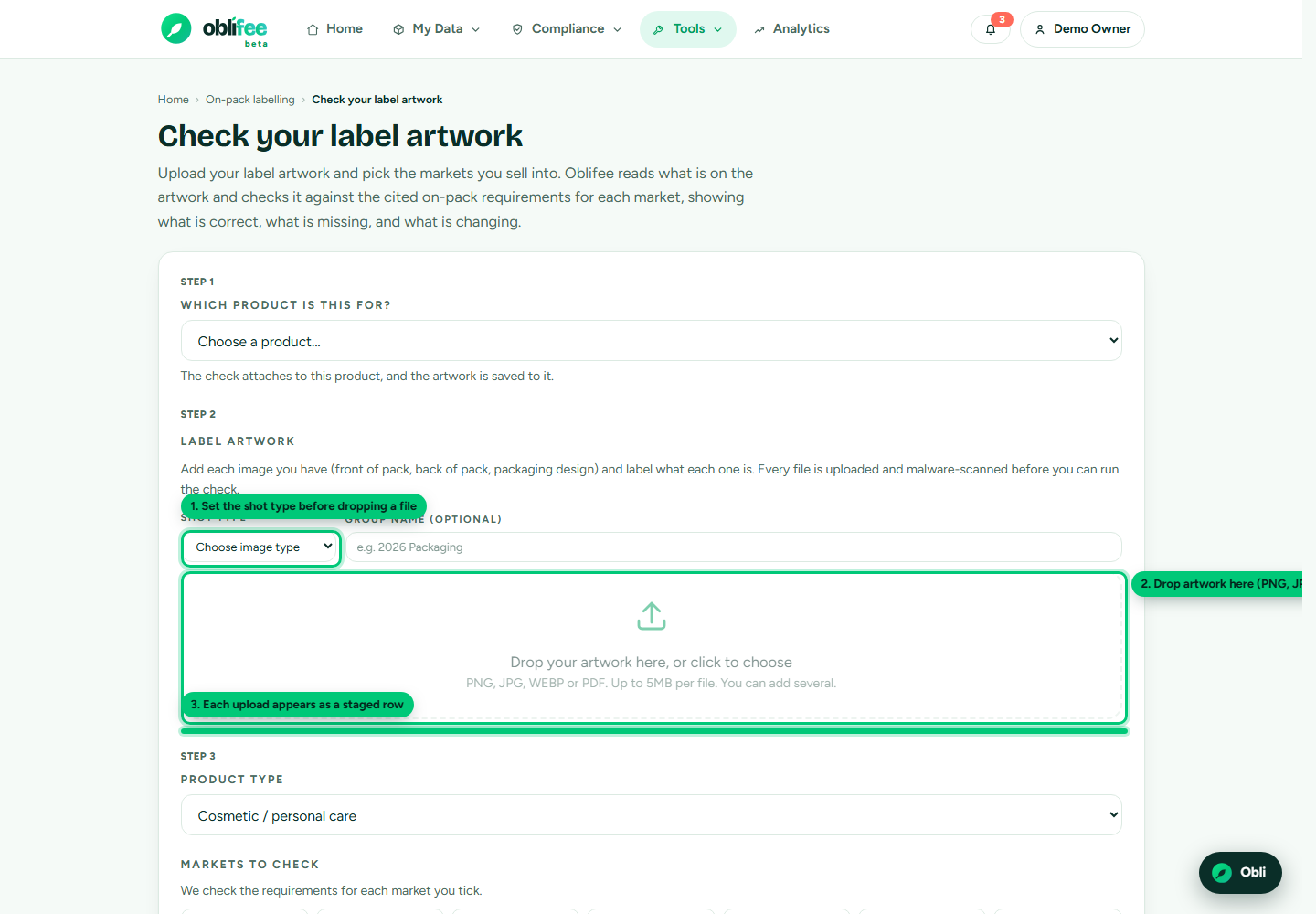
Artwork is added to a check one image at a time, so each file is scanned and staged before you run anything. This page covers what you can upload, how to manage the staged images, and how to re-run a check later against the same artwork.
What you can upload
| Rule | Detail |
|---|---|
| File types | PNG, JPG, WEBP or PDF. |
| Size | Up to 5 MB per file. |
| How many | As many as you need - typically front and back, sometimes more. |
Shot types
Before dropping a file, set its shot type so the reader knows what it is looking at. The front of pack is the anchor image:
| Shot type | Use for |
|---|---|
| Front | The front of pack (the primary image). |
| Back | The back of pack, where most mandatory text lives. |
| Design | A flat artwork / dieline. |
| Outer | An outer carton or sleeve. |
| Inner | An inner pack. |
| Whole | The whole pack in one shot. |
| Other | Anything else. |
You can also give the set a label (for example, "2025 relaunch artwork") to identify it later.
Adding and removing images
- Choose the shot type and, optionally, a label.
- Drop a file onto the upload zone (or click to browse). Each file uploads on its own.
- Every file is malware-scanned before it is stored. While a scan runs, the row shows as pending; you cannot run the check until all uploads have cleared.
- To drop a staged image, use its remove control. Removing the last image also clears the empty set, so nothing is left orphaned.
:::note Your artwork is handled with care Each file is scanned before it is ever read, and images are stored only against the check you are building. Uploads that fail the scan are rejected and never used. :::
Re-running against the same artwork
Once a check exists, you do not need to re-upload to check it again. From a check result, Re-run creates a new version using the same stored images, evaluated against the current rules. This is exactly what you do when a rule changes and a check is flagged out of date - the re-run shows the new position while the old version is kept as history.
:::info Re-running uses a credit A re-run reads the artwork again, so it uses one of your AI allowance credits, just like the first run. :::
Where to go next
- Running a labelling check - the full check flow and result.
- The compliance view - version history across your checks.