Consultant Workbench
The Consultant Workbench is a portfolio view for advisors and agencies who look after more than one Oblifee workspace. It shows every client workspace you can reach on a single page, with a compliance snapshot for each and a one-click jump into any of them - and it puts the clients that need attention first.
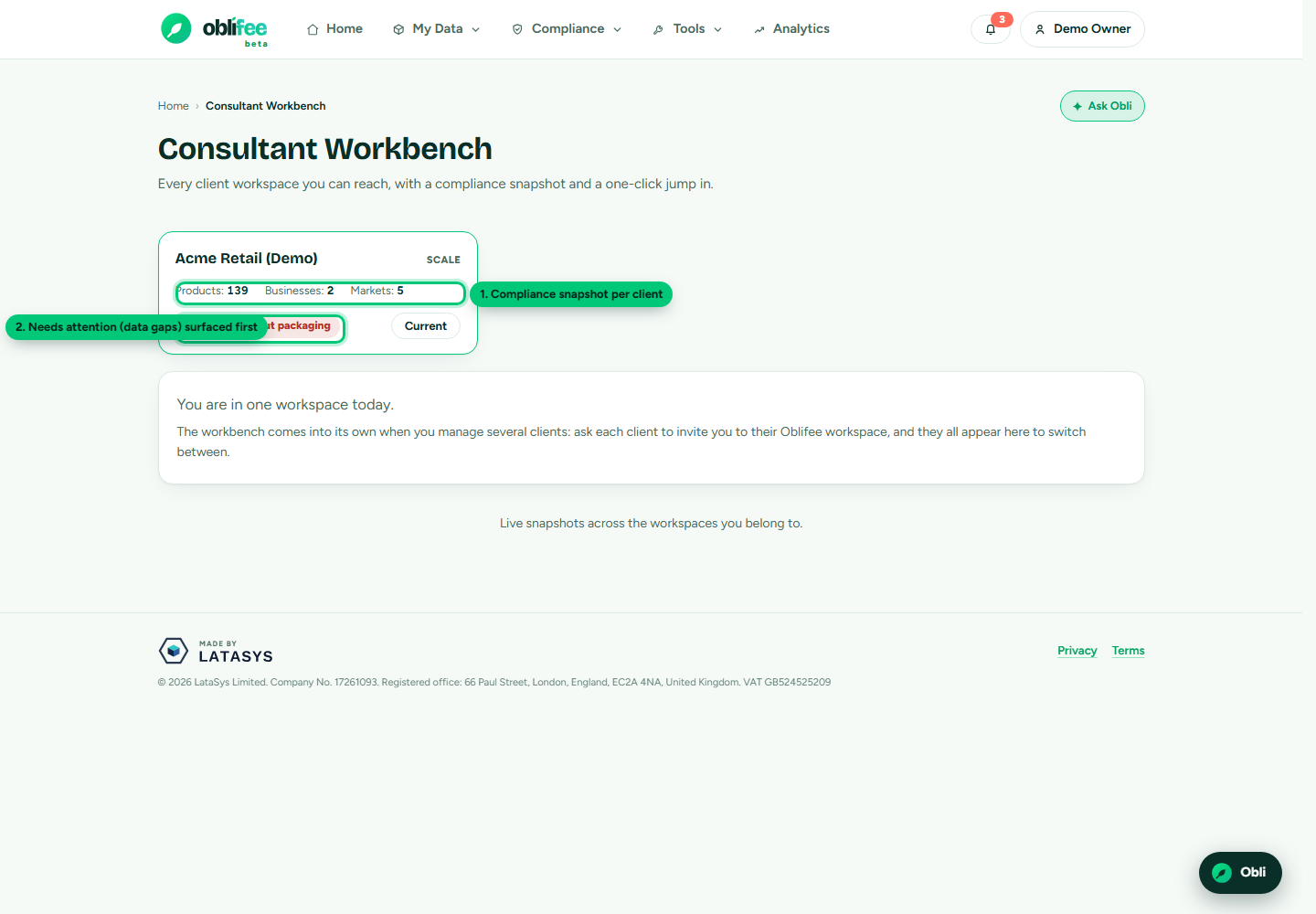
What each client card shows
| Field | Meaning |
|---|---|
| Name & plan | The client workspace and the plan it is on. |
| Products | How many products are in the workspace. |
| Businesses | How many active legal entities it holds. |
| Markets | How many markets it has volumes in. |
| Gaps | Products that have shipped volume but still have no packaging data - the honest blocker on a correct position. |
Clients with gaps are sorted to the top and flagged, so your attention goes where the risk is. The workspace you are currently in is marked, and every other card has an Open button that switches you straight into it.
Who sees the workbench
The workbench lists every workspace you have been given access to. You get onto a client's workspace when they add your email to their team - see Being invited.
:::note The Consultant module The Consultant Workbench is part of the Consultant module. During the current beta it is available to every workspace; as it moves to general availability it becomes a switchable add-on. See Plans & modules. If you only belong to one workspace, the workbench shows a short note explaining how client workspaces appear here. :::
Where to go next
- Being invited - how a client gives you access.
- Managing clients - working across the portfolio and how billing works.
- Switching workspaces - moving between workspaces.