Images & AI
Oblifee holds two kinds of imagery on a product: a single product photo for recognition, and one or more groups of packaging artwork that the AI reader can inspect against on-pack labelling rules. This page covers uploading both, and what the artwork reader extracts (and how to correct it). Every upload is malware-scanned before it is stored or read.
Product photo
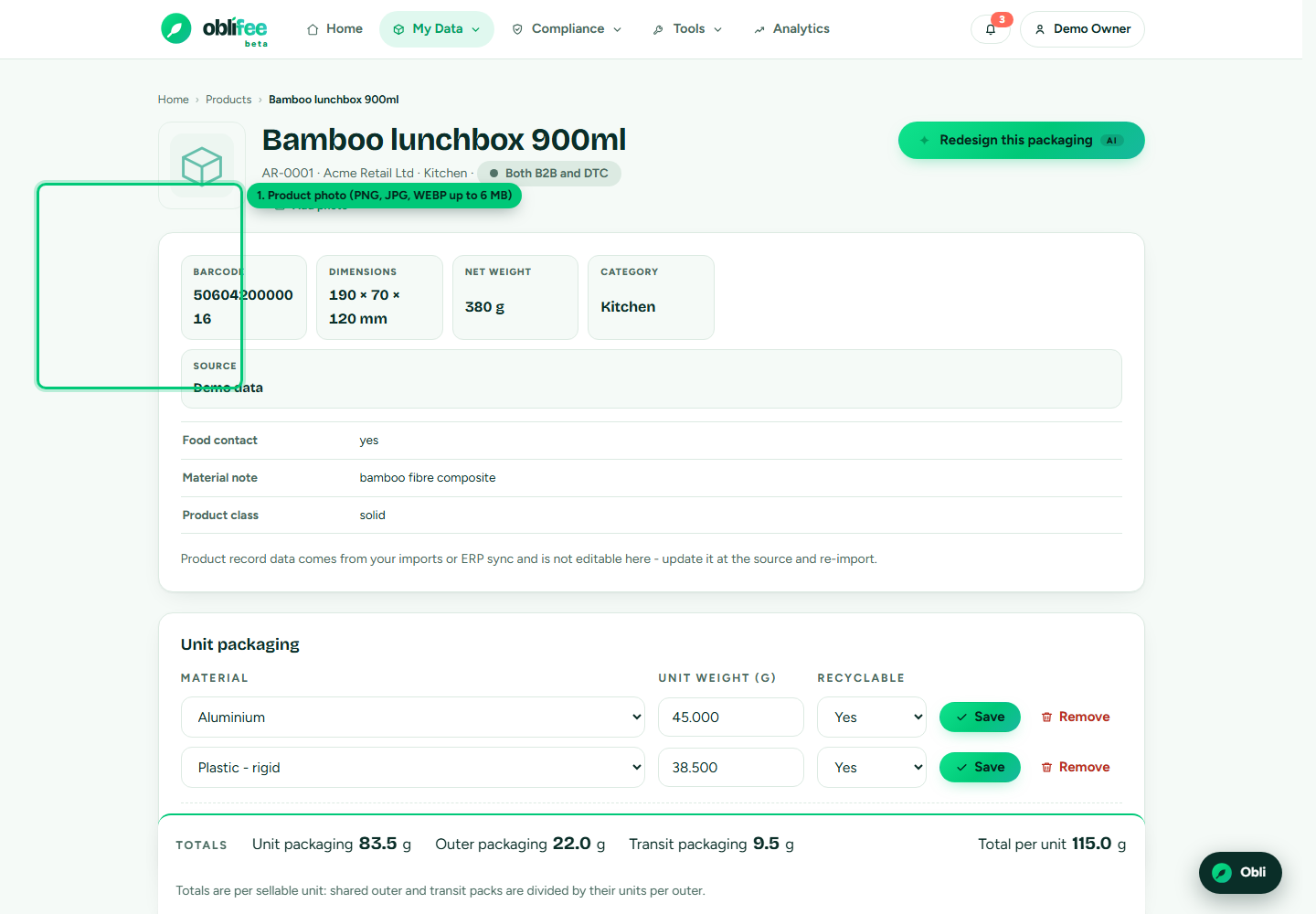
Each product can carry one photo, used to make it recognisable in the products list and on its page.
- Open the product and use the photo control at the top of the page.
- Upload a PNG, JPG or WEBP file, up to 6 MB.
- A second upload replaces the first - there is only ever one photo per product.
You can remove the photo at any time. It is purely for recognition; it is not read by the label checker (that is what packaging artwork, below, is for).
Packaging artwork
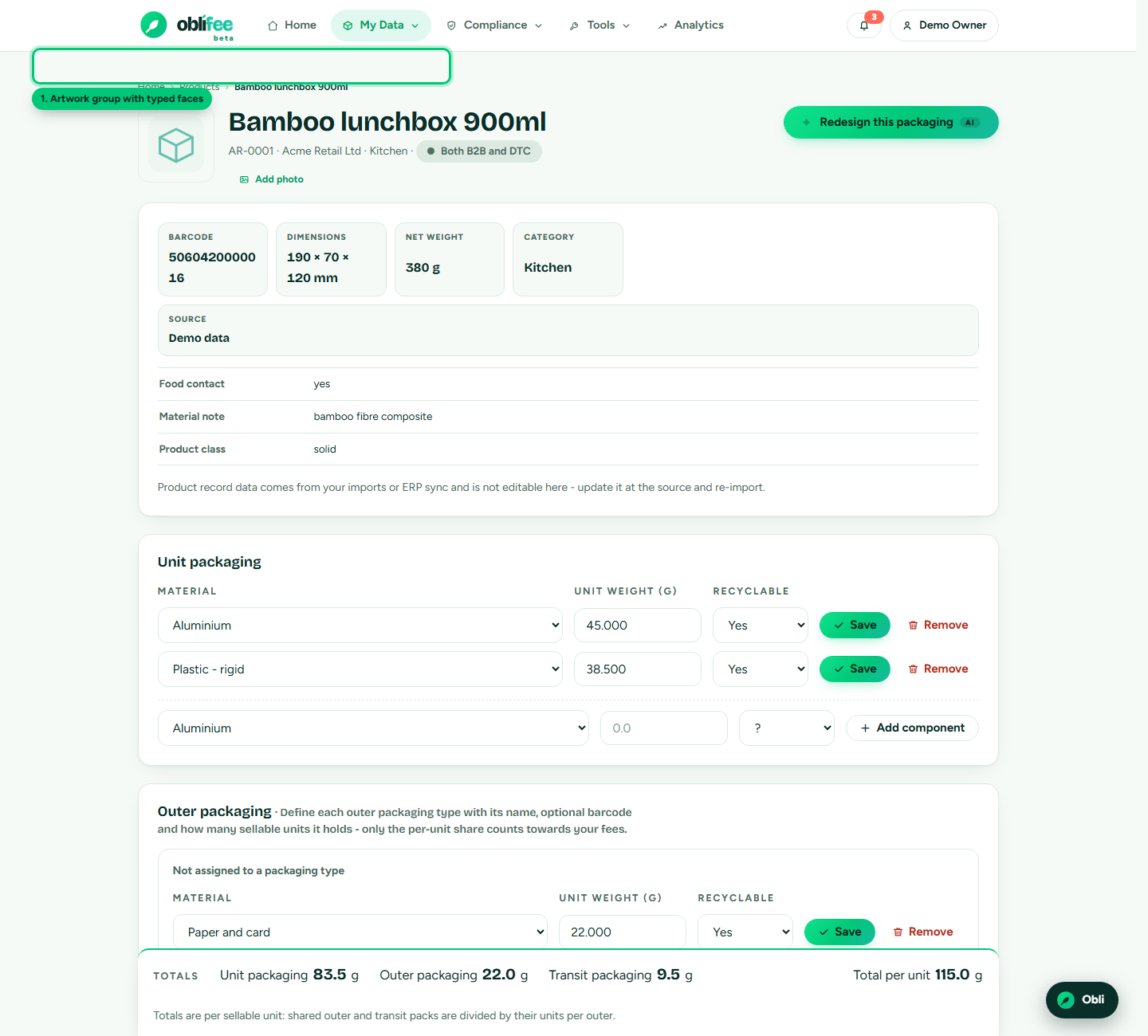
Packaging artwork is different from the product photo: it is the actual pack faces you want checked - front, back, and any other panels. Artwork lives in named groups (for example "2026 Packaging"), so you can keep versions side by side and re-check a redesign against the current rules.
Each image is typed by which face it shows: front, back, design, outer, inner, whole or other. To add artwork:
- On the product page, open the packaging images section.
- Give the group a name (or add to an existing group).
- Choose the face type and upload the file. Accepted formats are PNG, JPG, WEBP and PDF.
- Repeat for each face - a front and back are the useful minimum for a check.
:::note Every upload is scanned Where malware scanning is enabled, each file is scanned before it is stored or read - nothing is inspected until it comes back clean. See Security & trust. :::
The AI artwork reader
Once a group has artwork, the Analyse action runs Oblifee's AI reader over the images and checks them against the on-pack requirements for the product's markets. Oblifee picks the markets from the volumes you have recorded for that product, and guesses a sensible product type (cosmetic, food, drink, textile, and so on) from the product's category - which you can override before running.
What the reader extracts from the artwork:
| It reads | What it does with it |
|---|---|
| Languages present | Locates each language block on the pack, so you can see the pack was read correctly. |
| Named marks | Recognises recycling marks, EPR IDs, disposal and deposit marks, hazard and food-contact symbols, and similar named elements. |
| Element positions | Records a box for each detection so the finding can be pointed to on the artwork. |
| Required vs. present | Compares what it found against what each market requires, and flags what is missing, present or needs attention. |
The result is a full label-compliance report - element by element, market by market, each finding tied to its cited rule and locatable on the artwork. That report, and how to read and act on it, is covered under On-pack labelling.
:::info The AI reads; you decide The reader is an assistant, not an authority. It tells you what it saw and what the rules require, with its confidence and citations - you and your advisors make the final call. Correct it by fixing the artwork or your packaging data and re-running. :::
Correcting and re-checking
If the reader misreads a pack - a face uploaded upside down, a low-resolution scan, the wrong product type - you can put it right:
- Fix the input. Replace a blurry or wrong image in the group, or pick the correct product type, then run again. A clearer image or a PDF usually reads better than a small photo.
- Re-run as a new version. Re-checking keeps the previous result as history under the same lineage, so you can see how a redesign changed the outcome over time.
Each analysis uses part of your AI allowance. If you have used the month's allowance, it resets on your next cycle or you can add an AI pack. See Plans & billing.
Where to go next
- On-pack labelling - read and act on the label-check report.
- Packaging - the component data behind a product's obligations.
- Volumes - what sets a product's markets for the check.
- Security & trust - how uploads are scanned and isolated.