Bulk import
When you have more than a handful of rows, importing beats typing. Oblifee's import centre takes CSV files in two ways: fill in its own templates, or upload your own spreadsheet and let the AI map your columns. Either way, the same loader validates every row, reports failures honestly, and only ever reads the compliance fields - never personal data. Find it under Imports in the navigation.
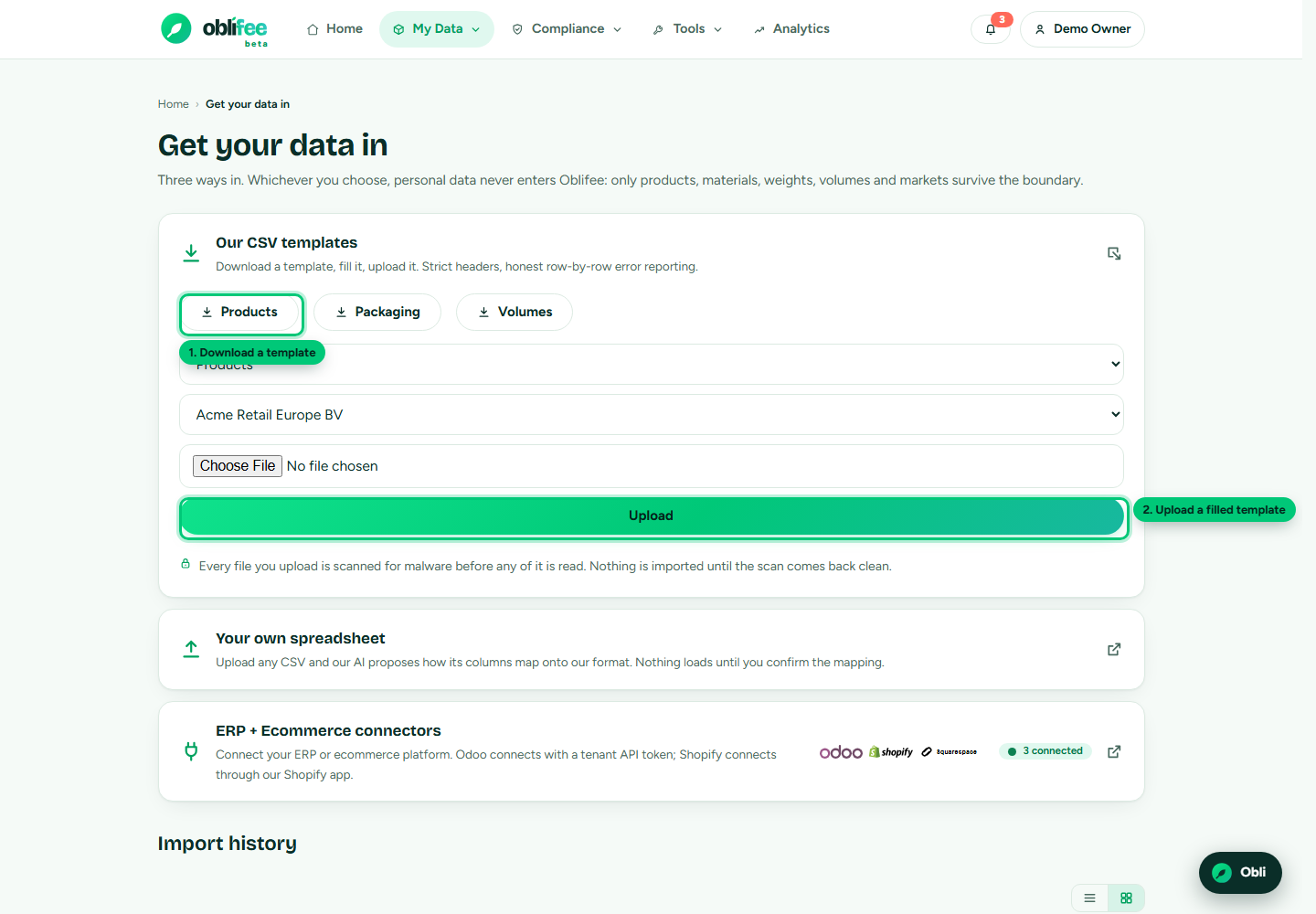
The three datasets
Imports are split into the same three datasets as the rest of Oblifee. Load them in this order, because each references the one before by SKU:
| Template | Columns | Notes |
|---|---|---|
| products | sku, product_name, category, barcode, width_mm, height_mm, depth_mm, net_weight_g | sku and product_name are required; the rest are optional. |
| packaging | sku, component, material_code, weight_g, recyclable, pack_name, pack_barcode, units_per_outer, channel | The sku must already exist. component is primary, secondary or transit. |
| volumes | sku, market, period, quantity | period looks like 2026-07; market is a country code. |
Path 1: our templates
The most reliable path is to start from the template, because its headers already match exactly what the loader expects.
- In the import centre, download the template for the dataset you want. Each comes with a sample row showing the format.
- Fill it in, keeping the header row unchanged.
- Choose the dataset and the business the rows belong to, pick your file, and upload.
- Watch the history table at the bottom for the result - rows loaded, and any that failed with the reason.
Every row is validated independently: good rows load, bad rows are reported with their line number and what went wrong (an unknown SKU, a malformed period, a missing weight), so you can fix just those and re-upload.
:::note Uploads are scanned first Where malware scanning is enabled, an uploaded file is quarantined and scanned before a single row is parsed. While it scans, the job shows scanning in the history; it moves to done only after a clean verdict. A file that cannot be proven clean is blocked, not imported. See Security & trust. :::
Path 2: your own spreadsheet (AI-mapped)
If exporting to our exact headers is a chore, upload your sheet as-is and let Oblifee map it. This uses the AI add-on.
- In the your own sheet panel, choose the target dataset and business, and upload your file.
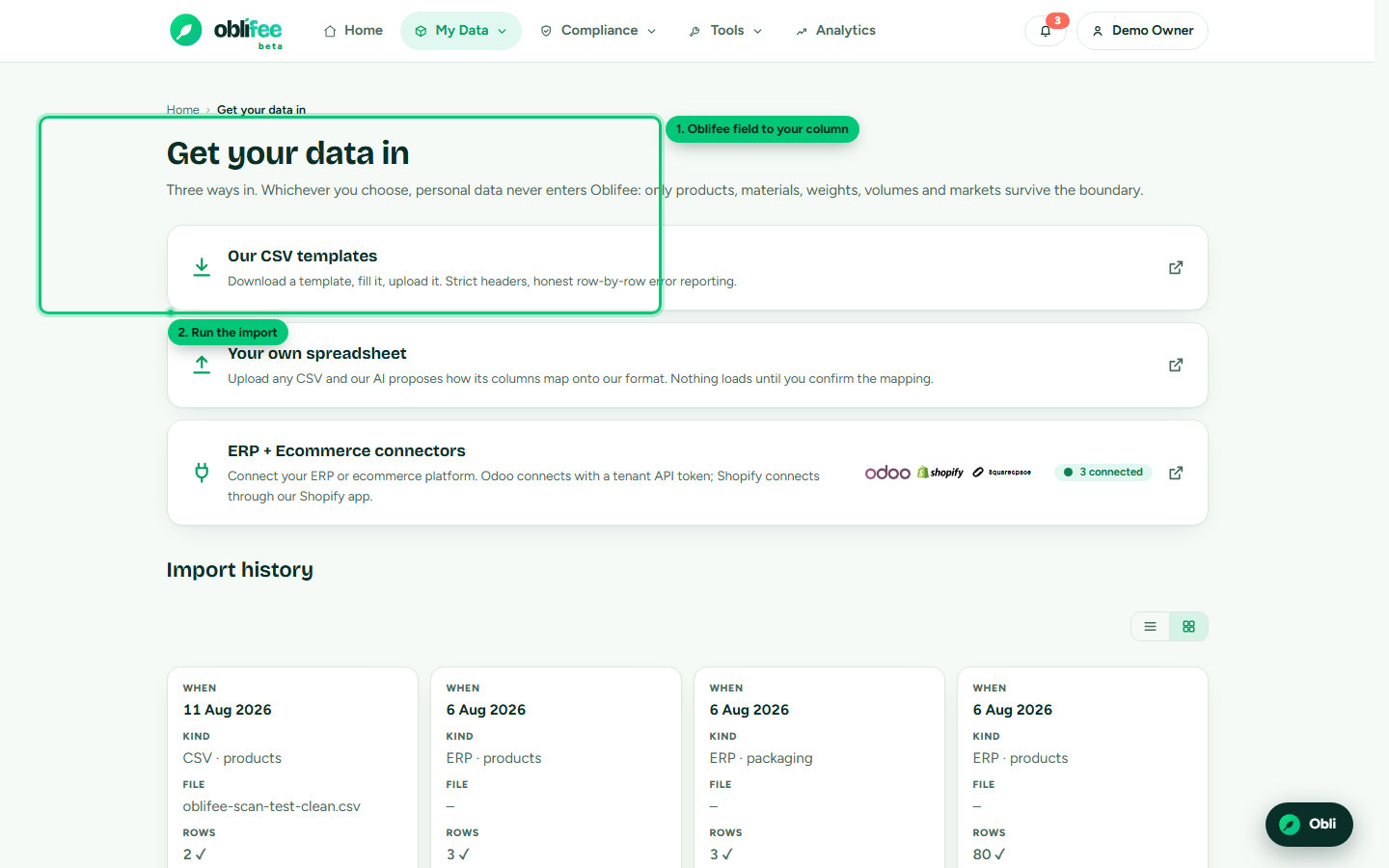
- Oblifee proposes a mapping from your columns to its fields - after the file has passed scanning, so its contents are never read early.
- Review the proposed mapping and confirm it.
- Run the import. The rows load through the same validator as the templates.
The mapper is bound by the same PII firewall as everything else: it is instructed never to map columns holding names, emails, addresses or phone numbers to anything, and the loader reads only the whitelisted compliance fields regardless. Anything else in your sheet is dropped at the boundary.
De-duplication
Once a connector starts managing a product, any sales volumes you had also loaded for it by hand (CSV, AI or manual) become duplicates - both would be counted. Oblifee never deletes your uploads silently; instead it flags the overlap and offers a cleanup.
- When a connector pushes volumes for products you also loaded manually, the import centre shows a possible duplicate data section (and notifies the workspace owners).
- It lists each affected business with how many rows and products overlap.
- Choose to remove the manually loaded rows for that business. This is explicit, two-click confirmed and audit-logged - the connector's data remains the single source of truth.
Connector-managed data uses replace semantics: a re-sync lands in the same place rather than adding duplicates, so once you have de-duplicated the old manual rows, the counts stay clean.
Import history
The history table at the bottom of the import centre lists recent jobs with their kind, file, row counts and status:
| Status | Meaning |
|---|---|
| scanning | The file is being malware-scanned; nothing has been parsed yet. |
| confirm | An AI-mapped job is waiting for you to review the mapping. |
| done | Loaded. The row counts show how many succeeded and failed. |
| blocked | The file did not pass scanning and was not imported. |
Where to go next
- Products, Packaging, Volumes - what each dataset means.
- Integrations & API - keep data current automatically instead.
- REST API - push the same datasets from an ERP.