Products
A product is anything you place on the market, identified by its SKU. It is the record every other compliance fact attaches to - packaging, volumes, images and label checks all hang off a product. This page covers the products list and the product page, and how to create, edit and brand a product by hand.
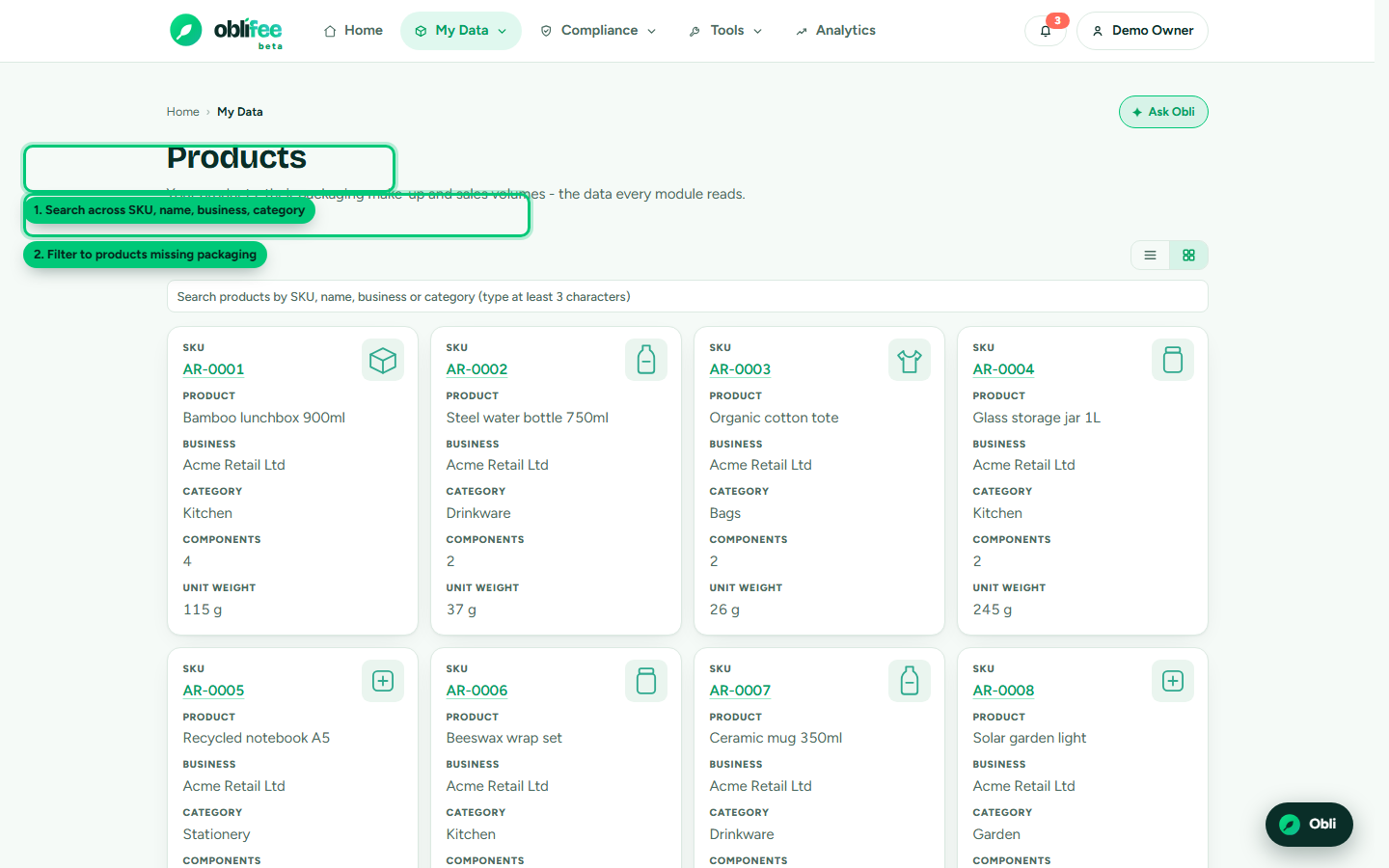
The products list
Open Products from the main navigation. The list shows one row per product, across every business in the active business scope, with:
| Column | Meaning |
|---|---|
| SKU | Your stock-keeping code - unique within a business. |
| Name | The product name. |
| Business | The legal entity that places it on the market. |
| Category | A free-text class (e.g. "Kitchen", "Cosmetics"), used to suggest sensible defaults elsewhere. |
| Components | How many packaging components are recorded. Zero is a gap worth closing. |
| Weight | Total packaging weight per unit, summed from the components. |
You can search across SKU, name, business and category (type at least three characters), sort any column, and page through large catalogues. Two filters help you find gaps:
- No packaging - products with no packaging components yet.
- Shipped, no packaging - products that have recorded volumes but still no packaging. These are the real problem: you are placing them on the market with nothing to calculate a fee from.
:::tip Close the gaps first The "shipped, no packaging" filter is the fastest way to find the products that are actively distorting your position. Work through it until it is empty. :::
Opening a product
Select any row to open the product page. It gathers everything Oblifee knows about that product on one screen:
- Its identity (below).
- Its packaging - primary, secondary and transit components.
- Its packaging images and label checks.
- Its recyclability (RAM) score, where the packaging is complete enough to rate.
- The on-pack labelling elements required in the product's markets.
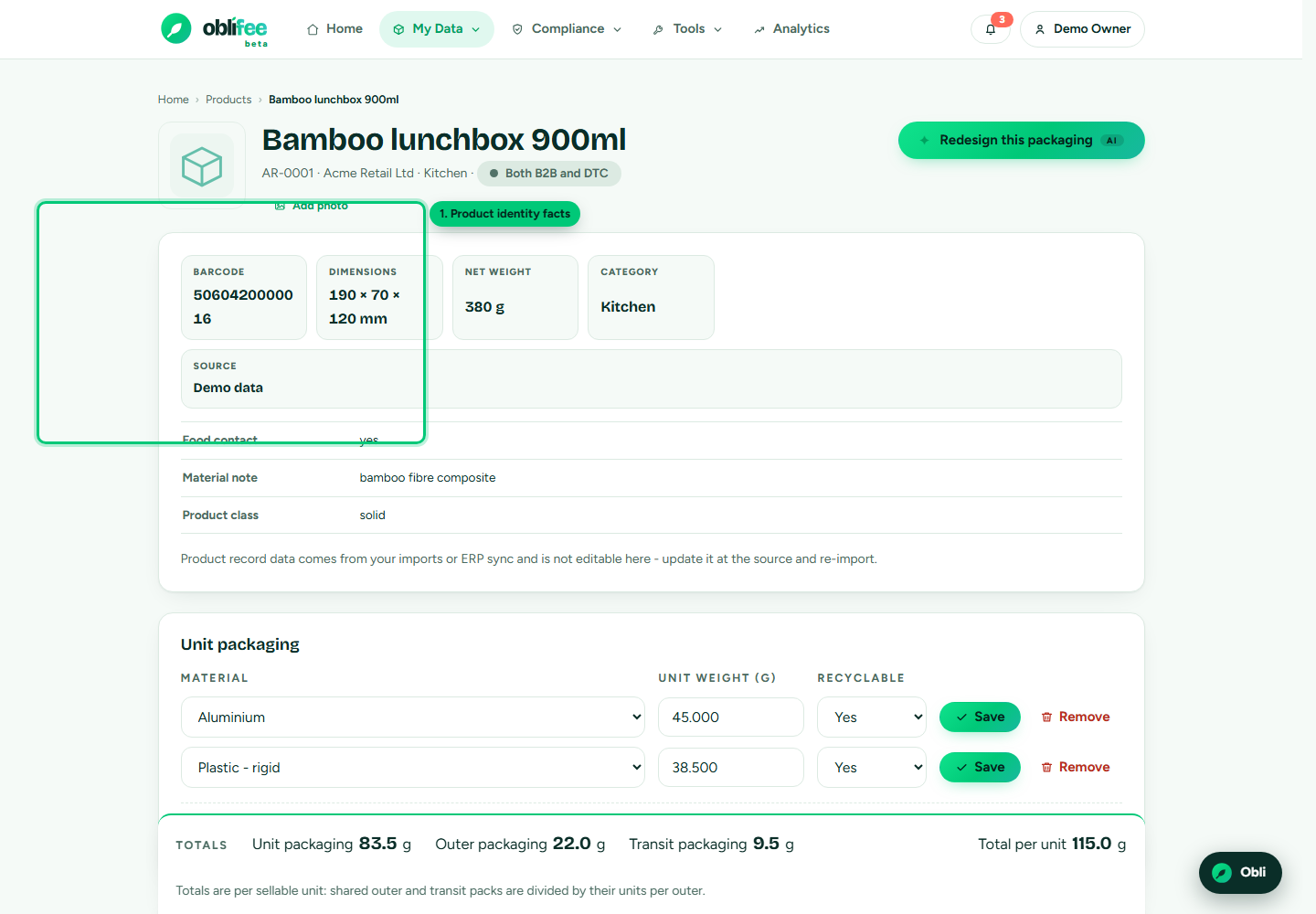
Product identity
The identity block holds the descriptive facts about the product itself - not its packaging:
| Field | Notes |
|---|---|
| SKU | Set when the product is created; the key everything else references. |
| Name | The product name. |
| Barcode | The retail barcode (GTIN/EAN), optional. |
| Dimensions | Width x height x depth in millimetres, optional. |
| Net weight | The weight of the product contents in grams (not the packaging), optional. |
| Category | A free-text class used to pre-fill sensible defaults (for example, the likely product type when you run a label check). |
| Source | How the product got here - manual, CSV, AI (mapped import) or ERP (a connector). |
The optional fields are exactly that - Oblifee calculates your packaging obligations from the packaging and volumes, not from dimensions or net weight. Fill them in where you have them; they sharpen other features but nothing breaks without them.
:::note Who can edit Owners and admins can create and edit products. Members with the user role see everything but cannot change it. :::
Creating and editing by hand
For a handful of products, entering them by hand is quickest. To add products in bulk instead, use the CSV import or a connector.
- Make sure the business that places the product exists.
- Add the product with its SKU and name (the only required fields), plus any identity details you have.
- Open the product and add its packaging components.
- Record volumes as you place stock on each market.
Editing is inline on the product page - change a field and save. A product created by a connector carries the ERP source; if you edit its packaging by hand, remember the connector re-syncs on a schedule and is the source of truth for the fields it sends.
Assigning a brand
A brand is a trading identity that can span more than one business. Brands are managed at the workspace level and linked to products, so a label check knows which registered entity and known marks to expect on the artwork.
To set a product's brand, use the brand selector on the product page. You can:
- Pick an existing brand already linked to the product's business.
- Create a new brand inline - give it a name (and optionally its legal entity, registered address and known marks) and it is created, linked to the business and assigned in one step.
If a product has no brand of its own but its business has exactly one brand, Oblifee uses that brand automatically. Manage brands in full - including which businesses each applies to - on the Brands screen. See Brands.
Where to go next
- Packaging - break the product down into components and packs.
- Volumes - record what you placed on each market.
- Images & AI - add packaging artwork and run a label check.
- Bulk import - load many products at once from a spreadsheet.