Navigating Oblifee
Every screen in Oblifee shares one shell: a top bar with your navigation on the left and your personal controls on the right. Learn it once and you can reach anything in a click or two. This page maps out where each feature lives.

The top navigation
The left of the bar holds your main navigation. Three of the items are dropdowns that group related pages:
| Item | Type | What is under it |
|---|---|---|
| Home | Link | Your action board - what needs attention and the modules you can use. |
| My data | Dropdown | Products, Volumes, Imports. |
| Compliance | Dropdown | Markets, Obligations, Registrations, Recyclability (RAM), WEEE & batteries, Reporting, News. |
| Tools | Dropdown | On-pack labelling, Design studio. |
| Analytics | Link | Tonnage, fee trends and totals across your workspace. |
Click a dropdown to open it; the item for the page you are on is highlighted so you always know where you are.
My data
Your own records - the things you enter or import.
- Products - every product, with its packaging completeness at a glance.
- Volumes - the monthly quantities you place, per market.
- Imports - bring products and volumes in from spreadsheets or connectors.
Compliance
What the rules mean for your data, market by market.
- Markets - your markets with their cited rates and fees.
- Obligations - what each market requires of you.
- Registrations - the schemes you must join, and the ones you have recorded.
- Recyclability (RAM) - the UK red/amber/green design rating rules.
- WEEE & batteries - electricals and batteries producer compliance.
- Reporting - submission-ready figures and PPWR readiness.
- News - the brain's regulatory change feed.
Tools
- On-pack labelling - what every market requires on the pack, and the AI-assisted artwork check.
- Design studio - explore packaging changes and their impact.
The right-hand controls
The right of the bar holds everything about you and your workspace.
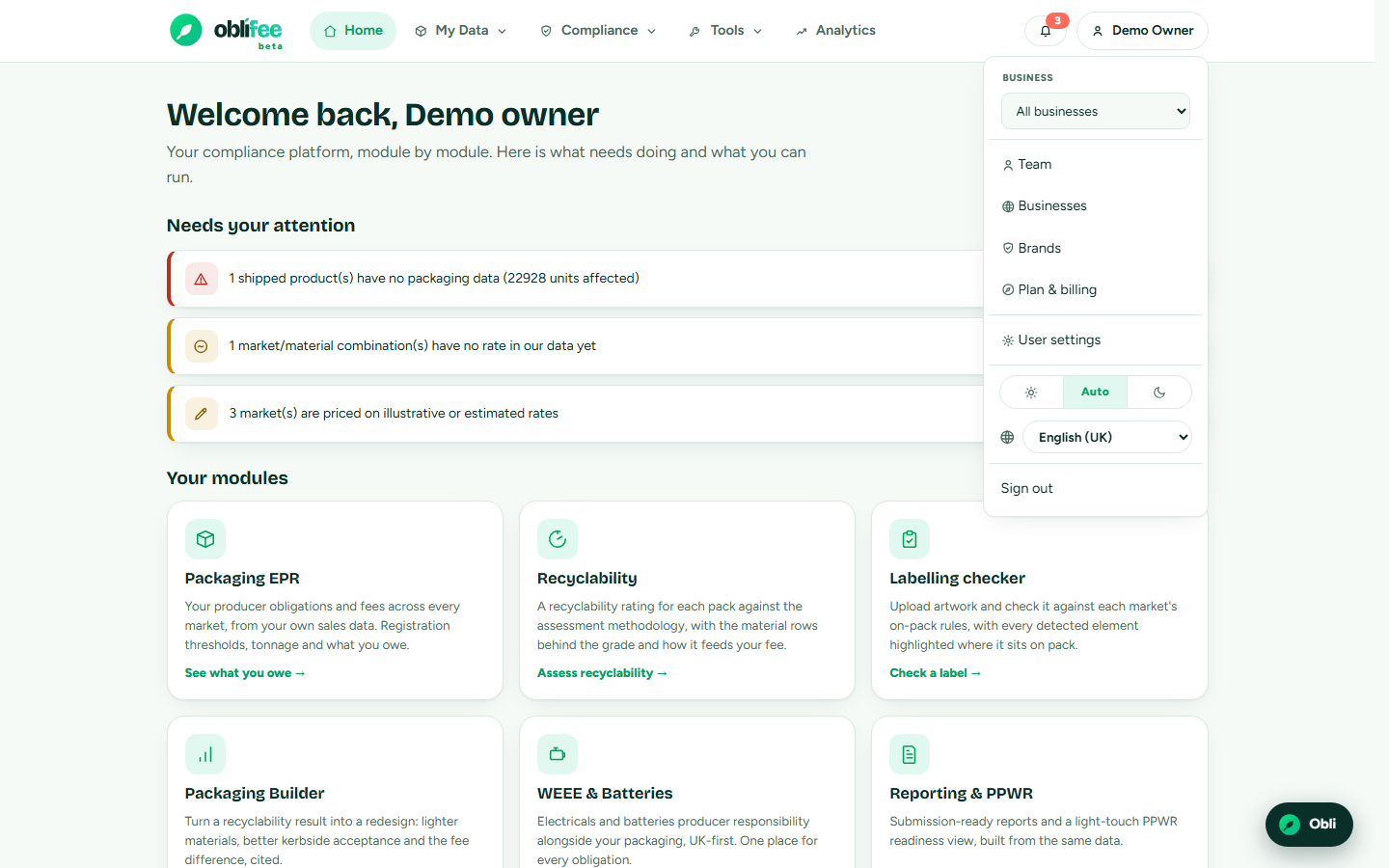
| Control | What it does |
|---|---|
| Workspace switcher | Appears only if you belong to more than one workspace; switches between them. See Switching workspaces. |
| Notifications bell | Health alerts that need fixing plus regulatory, team and billing notifications. A badge shows the unread count. |
| User menu | Your name; opens the menu below. |
The user menu gathers:
- Business picker - if your workspace has more than one business, scope the whole app to one business or view them all together.
- Consultant workbench - if you belong to more than one workspace, a portfolio view across your clients.
- Team, Businesses, Brands, Billing - workspace management (for owners and admins).
- User Settings - your account, theme, language and notification preferences.
- Theme - light, auto or dark (see below).
- Language - switch the interface language.
- Sign out.
:::note What you see depends on your role Management items such as Team, Businesses, Brands and Billing appear for owners and admins. A view-only member sees the pages they can use and their own settings. See Team and roles. :::
Light and dark theme
Oblifee follows your device by default and lets you pin a preference. The theme control - a light / auto / dark switch - lives in the user menu and again on your User Settings page.
- Light and Dark pin that look on this device.
- Auto follows your operating system's light/dark setting.
Your choice is remembered on the device you set it on.
Finding your way on mobile
On a narrow screen the navigation collapses behind a menu button. Tap it to open the same items stacked vertically, including the business picker, theme, language and sign-out.
Where to go next
- Your workspace - businesses, brands, team and settings.
- Switching workspaces - work across several clients.
- User Settings - theme, language and notifications.
- Compliance modules - what lives under Compliance and Tools.