Authentication
Oblifee does not run its own password database. Sign-in is handled by a managed identity provider, so the credentials you use to prove who you are never reach - and are never stored by - Oblifee.
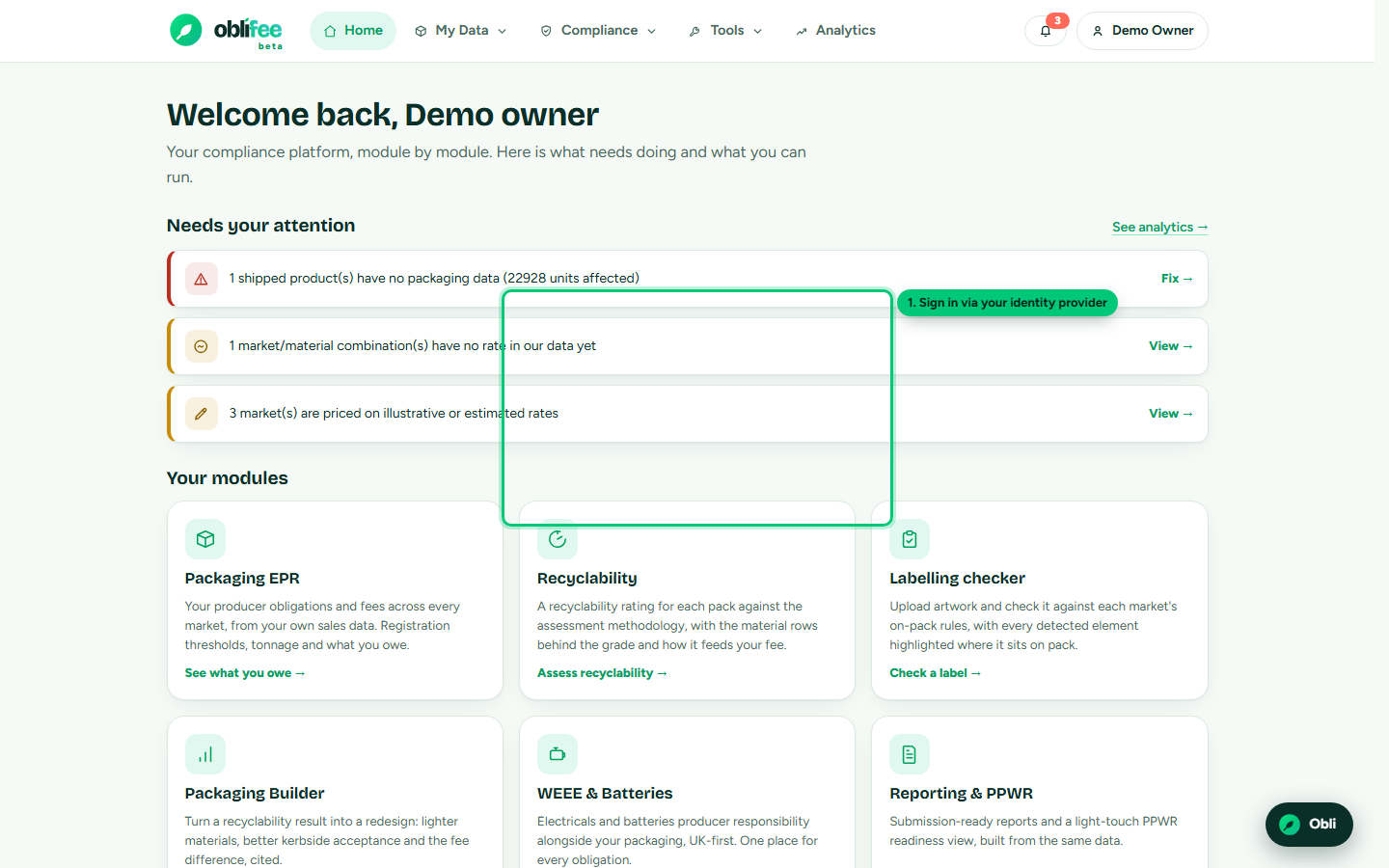
How sign-in works
When you sign in, the identity platform verifies your credentials and hands Oblifee a small, signed set of claims - who you are, your email, and which directory you came from. Oblifee reads that verified identity and matches it to your user record, creating one automatically the first time you sign in. Passwords, one-time codes and social-login secrets are handled entirely by the provider; Oblifee never sees them.
Two kinds of account exist, kept firmly apart:
| Account type | Who | Can reach |
|---|---|---|
| Customer | Workspace owners and members (email or social sign-in) | The portal for their workspaces |
| Staff | LataSys personnel, from the LataSys directory only | Internal administration, never a customer's portal by default |
Staff sign in from a separate directory, and staff tooling is off-limits to customer accounts. Any staff action that touches a customer workspace is recorded in the audit trail.
Sessions
Oblifee keeps very little session state of its own. After the identity provider signs you in, your identity travels with each request as verified claims, and a single cookie remembers which workspace you are currently working in. There is no long-lived server-side session store holding your credentials, because there are no credentials to hold - only the record of who you are and which workspace is active.
:::note Signing out Signing out clears your session with Oblifee. Because the identity provider owns the login, fully ending an SSO session may also mean signing out of your provider, depending on how your organisation has configured it. :::
Getting access to a workspace
You reach a workspace in one of two ways:
- You create it. Registering a new workspace makes you its owner.
- You are invited. An owner or admin invites your email address to their workspace with a role. The next time you sign in with that email, the invitation is activated automatically and the workspace appears in your switcher.
Roles determine what you can do inside a workspace:
| Role | Typical use | Scope |
|---|---|---|
| Owner | The person who set up the workspace | Full control, including billing |
| Admin | Trusted team members | Manage data, team and settings |
| Member | Everyday users | Work with data; can be limited to specific businesses |
Members can be restricted to particular businesses; see Tenant isolation for how that restriction is enforced at the database.
Revoking access
Access is removed the moment it should be:
- Remove a member from a workspace and their access ends immediately.
- Revoke an invitation before it is accepted and it can never be used.
- Business-level grants can be withdrawn without removing the person from the workspace.
Because Oblifee has no password of its own to leak, revoking access is a single decision inside the workspace - there is no separate credential to chase down.
Where to go next
- Tenant isolation - how your data stays separate once you are signed in.
- Secrets & managed identity - the same managed-identity idea, applied to how the app reaches its own database.
- Team & roles - inviting people and setting roles.