Brands
A brand is a trading identity. Oblifee keeps brands separate from businesses because the two do not map one-to-one: a single brand can be sold through several legal entities, and one legal entity can own several brands. Managing brands in their own right keeps that flexible. Owners and admins manage brands.
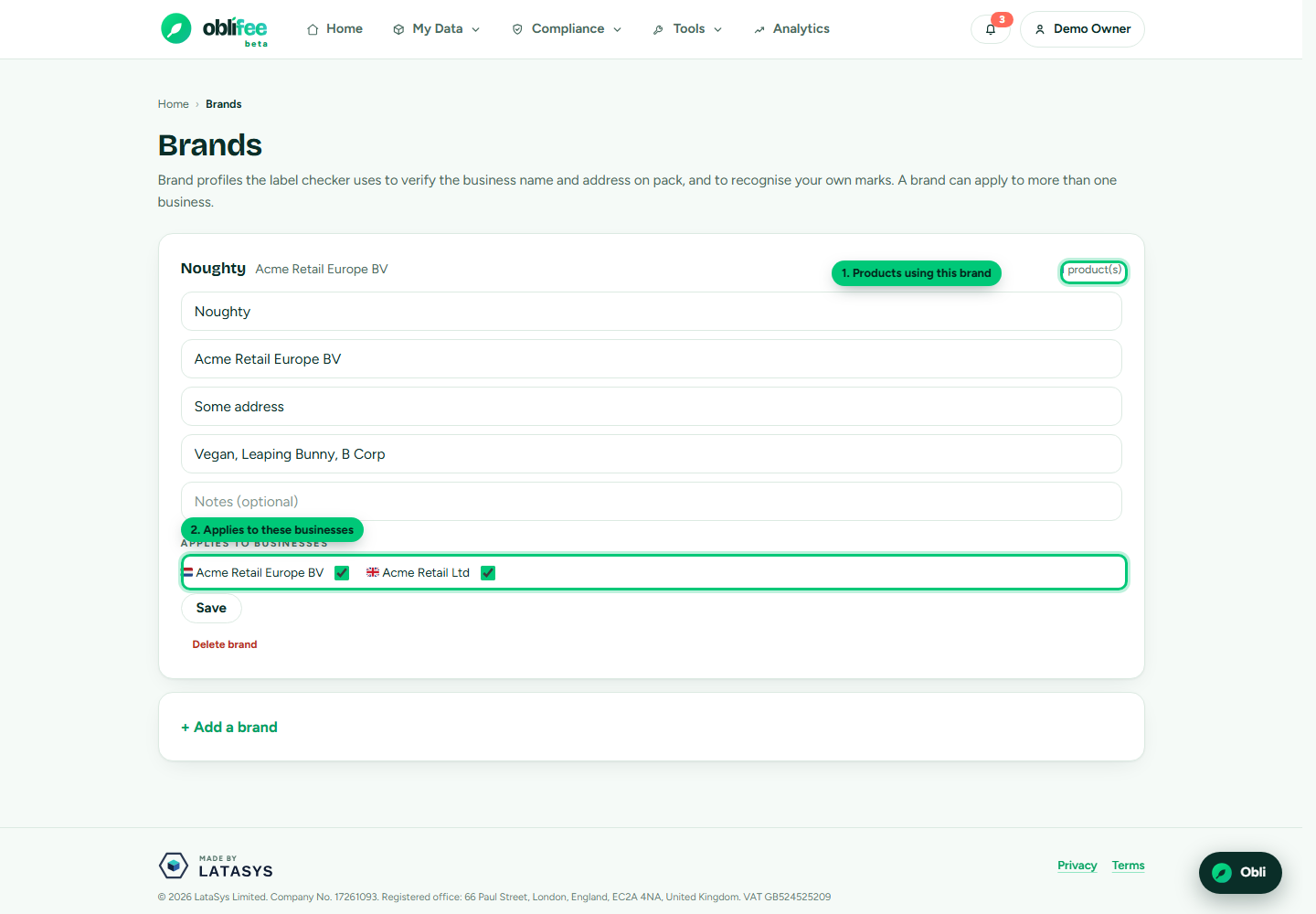
Why brands are separate from businesses
Think of a business as who is legally responsible and a brand as what appears on the pack. Because one brand can be placed on the market by more than one business, a brand is a workspace-level object that you link to the businesses it applies to, rather than something owned by a single business. Products are then assigned to a brand, so the labelling and compliance tooling knows which brand's marks and details to check against.
Creating a brand
- Open the user menu and choose Brands.
- Expand Add a brand.
- Fill in the brand's details:
| Field | What it is |
|---|---|
| Name | The brand name (required). |
| Legal entity | The legal entity behind the brand, if relevant. |
| Registered address | The brand's registered address. |
| Known marks | On-pack marks associated with the brand, comma-separated. |
| Notes | Any free-text notes. |
- Under Applies to, tick the businesses this brand is sold through.
- Select Add.
To edit a brand later, change its fields in place on the Brands page and select Save. Adjusting the Applies to ticks re-sets exactly which businesses the brand is linked to.
Assigning products to a brand
A brand only affects a product once the product is assigned to it. There are two ways to do that:
- From a product - on the product page, pick the brand from its brand selector. Only brands linked to that product's business are offered.
- Create and assign in one step - if the right brand does not exist yet, you can create it from the product page; it is linked to that product's business and assigned to the product immediately.
The Brands page shows a products using count for each brand so you can see how widely it is applied.
Deleting a brand
To remove a brand, use its Delete action on the Brands page and confirm. Deleting a brand removes the brand and its business links; products that were assigned to it simply no longer carry a brand.
Where to go next
- Businesses - the legal entities a brand links to.
- Core concepts - how a brand fits the data model.
- On-pack labelling - where a brand's marks are checked.