Businesses
A business in Oblifee is a legal entity - the company that actually places packaging on the market and carries the obligation. This is where you record who that entity is, where it is registered and operates, and who is responsible for its compliance. Owners and admins manage businesses.
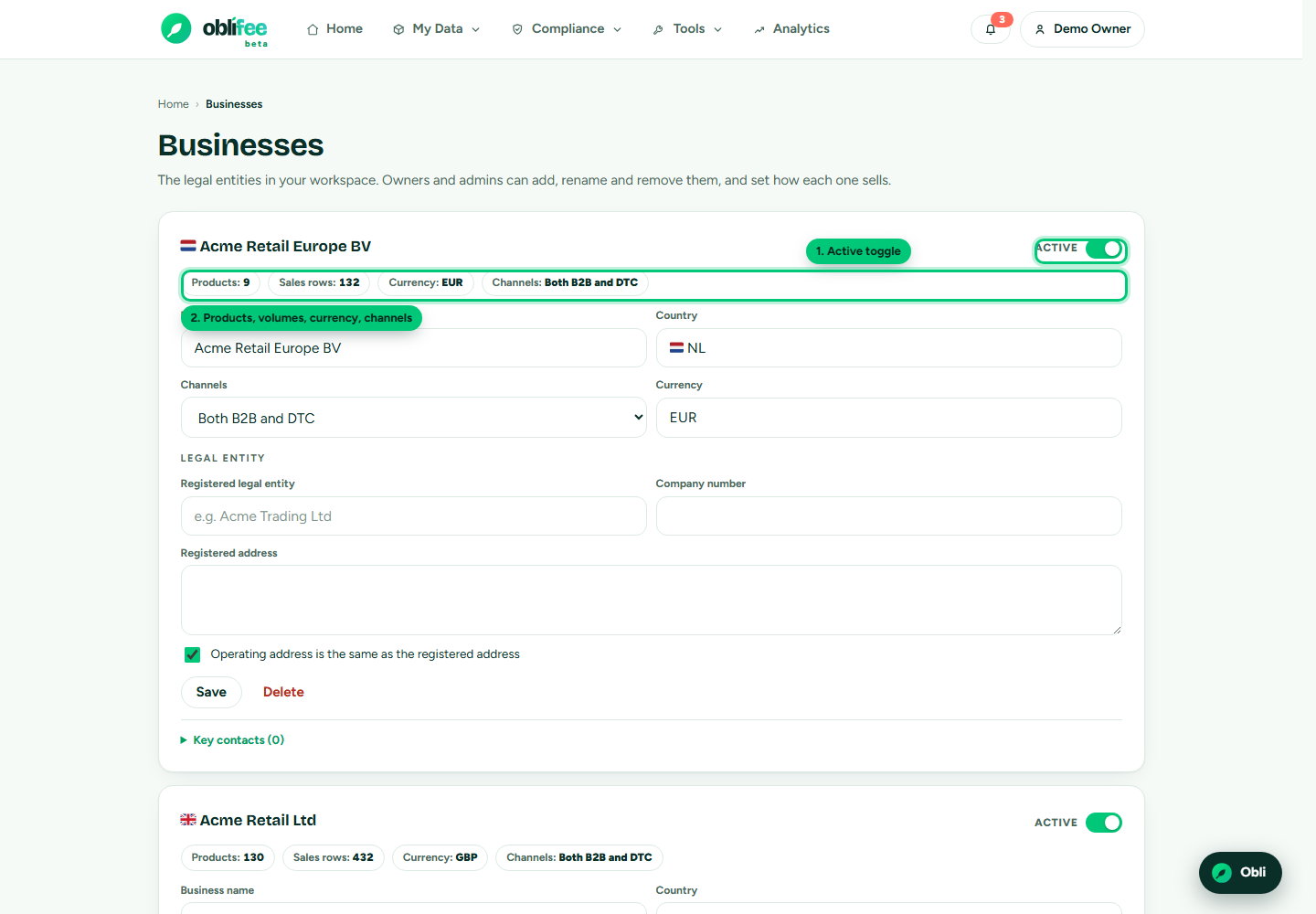
Adding a business
- Open the user menu and choose Businesses.
- In the add row at the bottom, enter the business name, its country
(two-letter code, for example
GB), its currency (for exampleGBP) and its sales channels. - Select Add. The business appears in the list, ready for its full details.
The business form
Open a business to complete its identity. It has three parts.
Identity
| Field | What it is |
|---|---|
| Name | The trading or display name of the business. |
| Country | The home country, set when you add the business. |
| Currency | The currency fees are shown in for this business. |
| Channels | Whether it sells B2B, direct-to-consumer, or both. |
Legal entity
| Field | What it is |
|---|---|
| Legal entity | The registered legal name, if different from the trading name. |
| Company number | The official registration number. |
Addresses
A business has a registered address and an operating address.
- Enter the registered address.
- If the business operates from the same place, leave Operating address same as registered ticked and the operating address mirrors the registered one.
- To record a different operating address, untick that box and the operating address field appears.
Select Save to store your changes.
Key contacts and the responsible regulatory contact
Each business keeps a list of key contacts - the people who matter for its compliance.
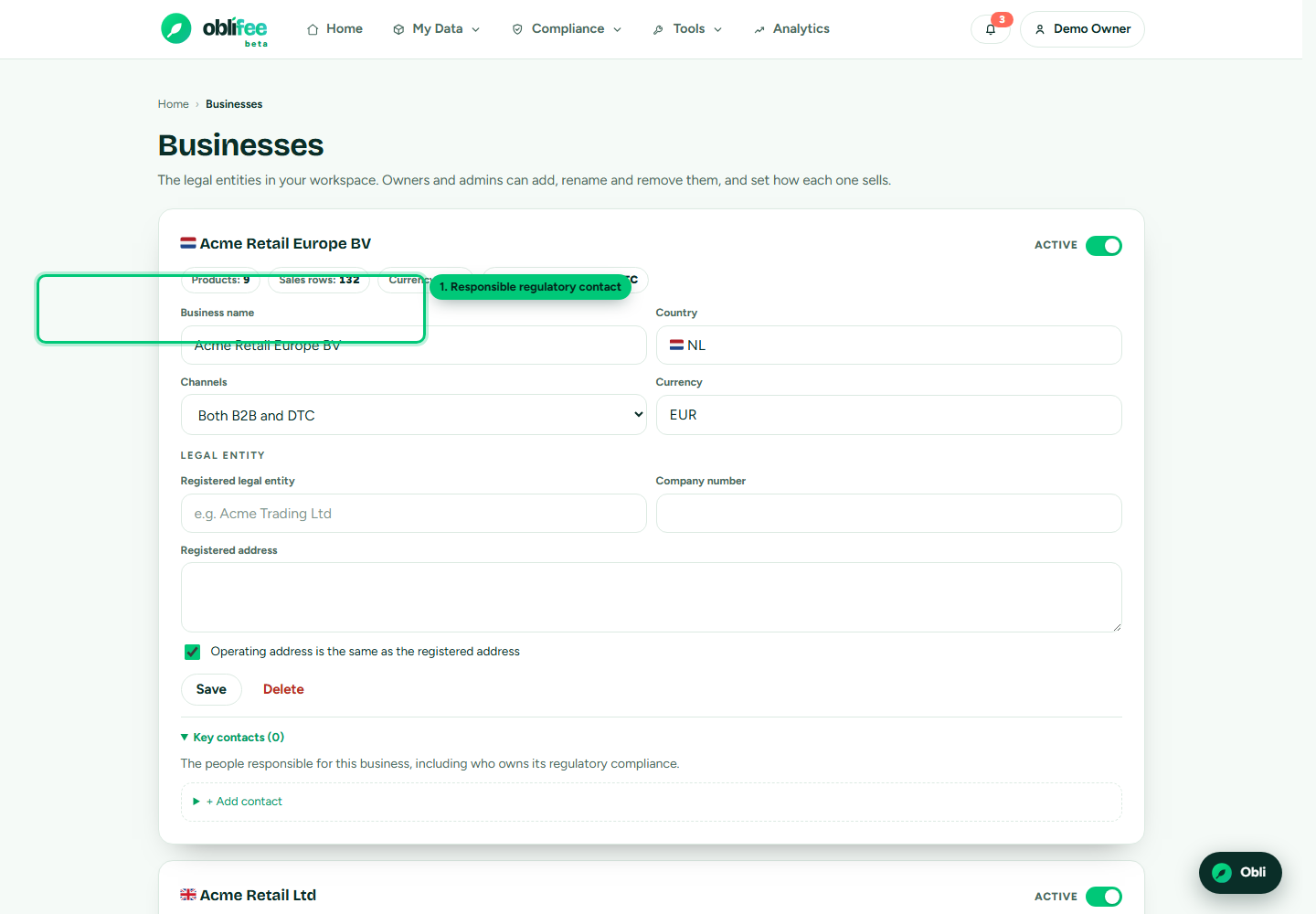
- Open a business and expand Key contacts.
- Select Add contact.
- Enter the person's name, and optionally their role, email and phone.
- Tick Responsible for regulatory compliance to mark this person as the one accountable for the business's compliance.
- Save.
:::note One responsible contact per business Only one contact can be the responsible regulatory contact at a time. Marking a new person as responsible clears the flag from whoever held it before. :::
To remove a contact, use the delete (trash) icon on its row.
Why keep several businesses in one workspace
A workspace can hold as many businesses as you need. Keep them separate when:
- You operate group companies or multiple trading entities, each of which registers and reports in its own right.
- You want compliance figures attributed to the correct legal entity.
- Different parts of the organisation sell through different channels.
You can work across all of them at once, or scope the whole app to one business using the business picker in the top bar.
Turning a business off
Every business has an active toggle. Switching a business off removes it from selectors, dashboards and syncs everywhere, but keeps all its data - and the switch reverses cleanly. Use this to park an entity you are not currently reporting for, without losing anything.
Deleting a business
Deleting is permanent and removes the business together with its products, packaging, volumes and registrations.
- Open the business and select Delete.
- Oblifee shows a confirmation screen with the exact counts of what will be removed - products, components, volumes and registrations.
- Confirm to delete, or step back if the counts are not what you expect.
:::warning Delete removes data; toggling off does not If you only want to stop reporting for a business for now, switch it off instead of deleting it. Off is reversible; delete is not. :::
Where to go next
- Brands - trading identities that link to one or more businesses.
- Team and roles - limit members to specific businesses.
- Core concepts - how a business fits the data model.
- Registrations - the schemes each business must join.