User Settings
The User Settings page holds your personal preferences: how the app looks, what language it speaks, which business it opens on, and which notifications you receive. Reach it from the user menu at the top right. The page is grouped into cards, and each card has its own Save button - save the one you changed.
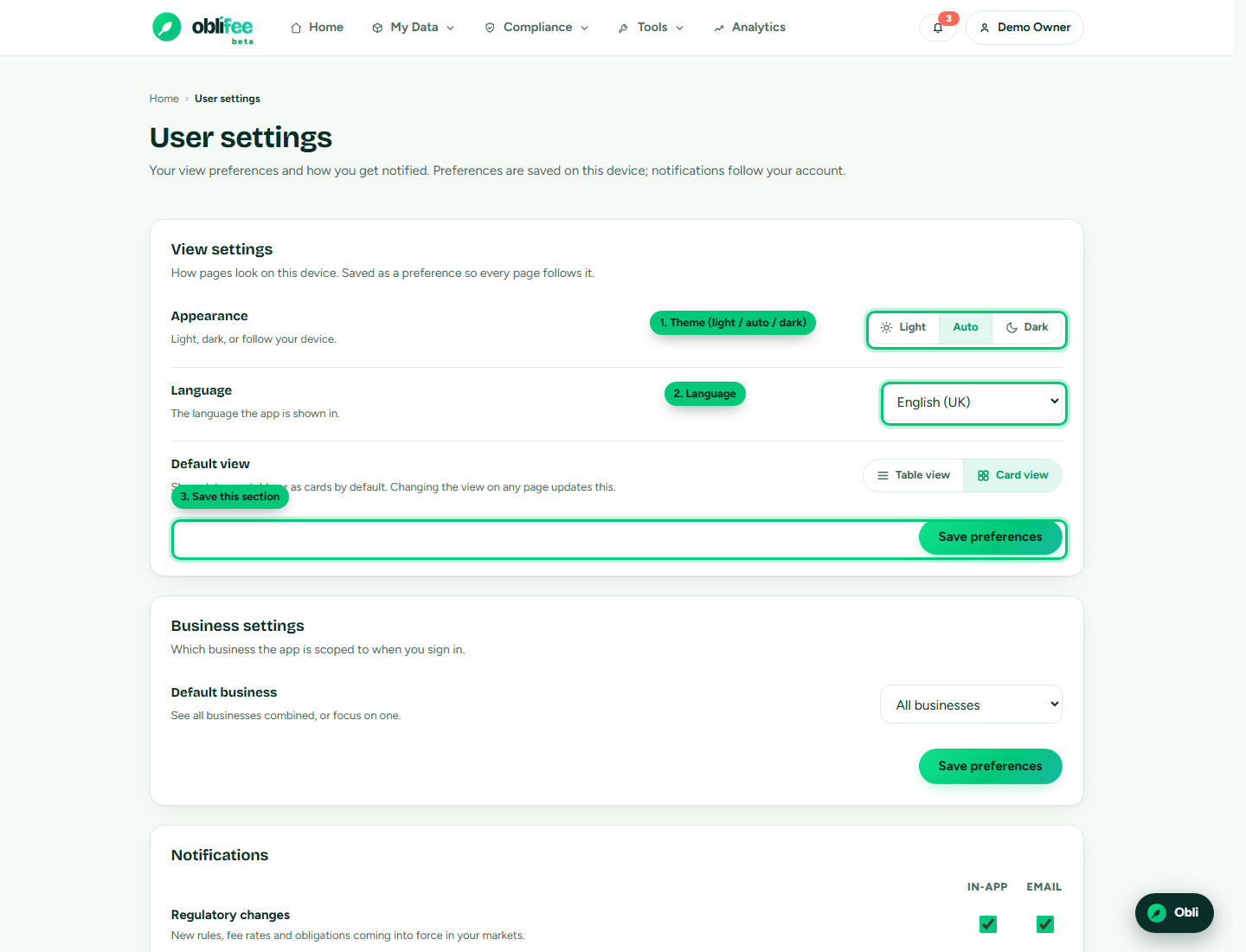
View settings
Controls how the app looks and reads on this device.
| Setting | Options | Notes |
|---|---|---|
| Theme | Light, Auto, Dark | Auto follows your operating system. Saved on this device. |
| Language | Any supported language | Saved to your account, so it follows you across devices. |
| Default view | Table or Cards | How lists such as products open by default. Saved on this device. |
:::note Device settings vs account settings Theme and default view are remembered per device (so your laptop and phone can differ), while your language preference is stored on your account and follows you everywhere. The theme control here is the same one in the user menu - change it in either place. :::
Oblifee supports a wide range of interface languages. Dates, numbers and currencies are localised to match, so figures read naturally in your language.
Business settings
If your workspace has more than one business, this card sets your default business - the one the app opens scoped to.
- Choose a specific business to focus the whole app on it, or All businesses to see everything together.
- This is the same scope the business picker in the top bar sets; changing it in either place updates the other.
Select Save to store your default. (The card only appears when there is more than one business to choose between.)
Notification settings
Choose which notifications you receive and how. Notifications are grouped by kind, and for each you can turn In-app and Email on or off independently.
| Kind | What it covers |
|---|---|
| Regulatory | Changes in the rules that affect your markets. |
| Team | Team activity, such as an invitation being accepted. |
| Billing | Billing and subscription events. |
Tick the channels you want for each kind and select Save. In-app notifications appear in the notifications bell in the top bar; the full history lives on the notifications page.
Where to go next
- Navigating Oblifee - where these controls live in the shell.
- Switching workspaces - the business scope resets when you switch workspace.
- Team and roles - manage who else is in the workspace.